Notes
Setup AI and gaming ubuntu laptop
Set up a AI and gaming ubuntu laptop

HP OMEN Ubuntu 26.04 AI + Gaming Build Book
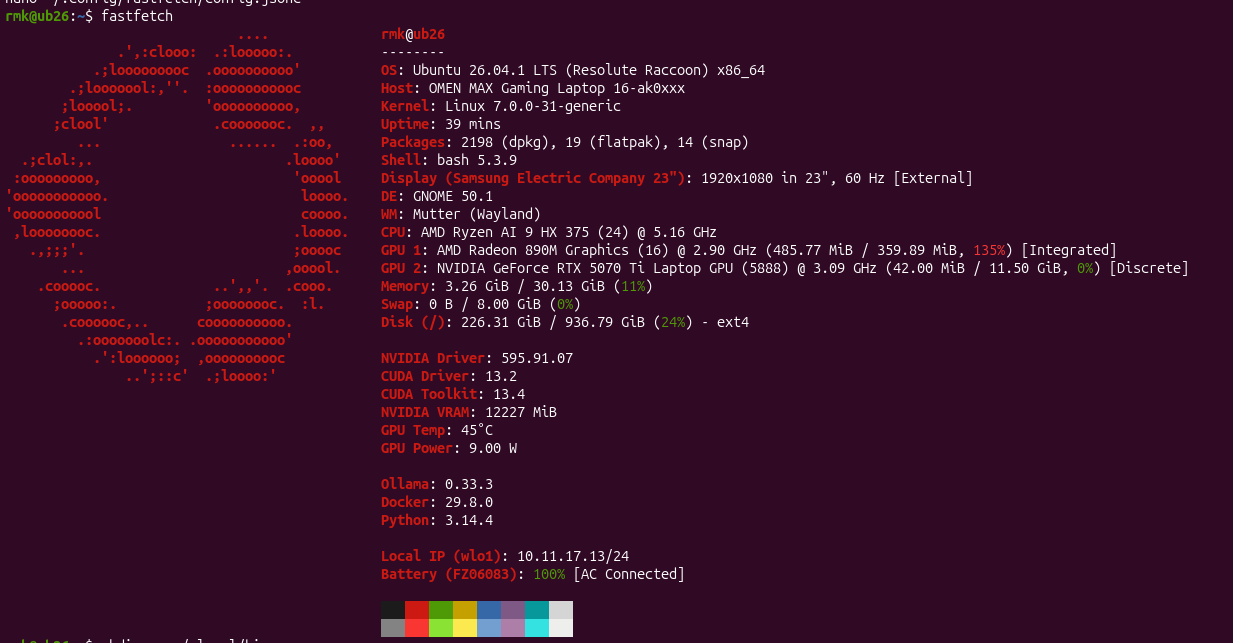
Machine: HP OMEN MAX Gaming Laptop 16-ak0xxx
OS: Ubuntu 26.04.1 LTS (Resolute Raccoon)
Kernel observed: 7.0.0-31-generic
Purpose: Reproducible Linux workstation for CUDA/AI development,
local LLMs, image generation, containers, and Windows/Linux gaming.
This is a record of the known-good configuration built and validated on this machine. It deliberately distinguishes required setup from optional tuning. After a future reinstall, package/model versions may have advanced; prefer current compatible versions unless reproducing this exact environment.
1. Known-good hardware and architecture
- CPU/platform: AMD platform using
amd-pstate-epp - Integrated GPU: AMD Radeon 890M (Strix)
- Discrete GPU: NVIDIA GeForce RTX 5070 Ti Laptop GPU (Blackwell GB205M)
- NVIDIA compute capability: 12.0
- NVIDIA VRAM: ~12 GB nominal; applications see about 11.5 GiB
- RAM: 32 GB
- Storage: ~1 TB NVMe
- Secure Boot: enabled
- Graphics design: hybrid graphics
- AMD iGPU remains the normal desktop/battery GPU.
- NVIDIA dGPU is offloaded to for CUDA, AI, and games.
- Do not globally switch PRIME/MUX unless a specific problem requires it.
Displays
Internal AUO panel - Native: 1920x1200, 16:10 - Preferred/max
refresh: 165 Hz - Alternate native timing: 60 Hz - Adaptive Sync
advertised: 60-165 Hz, with an additional 48-60 Hz descriptor - Seamless
dynamic video timing: supported - Maximum luminance advertised: 400
cd/m² - Connected as card2-eDP-1 to the AMD GPU
External Samsung C24F390 - Native: 1920x1080 @ 60 Hz - EDID range:
50-72 Hz - Connected as card1-HDMI-A-1 on the NVIDIA GPU - 1080p60 is
the correct native HDMI mode; this is not a 120/144/165 Hz display.
2. Base operating-system checks
Update the system first:
sudo apt update
sudo apt full-upgrade
Check firmware:
fwupdmgr get-devices
fwupdmgr get-updates
Useful baseline commands:
uname -a
lsb_release -a
free -h
lsblk
lspci -nnk | grep -A3 -E 'VGA|3D|Display'
mokutil --sb-state
3. NVIDIA driver and hybrid graphics
The validated driver was the Ubuntu-recommended NVIDIA 595 open kernel
driver (nvidia-driver-595-open), version 595.84.
Check Ubuntu's recommendation:
ubuntu-drivers devices
Install the recommended open driver if needed:
sudo apt install nvidia-driver-595-open
sudo reboot
Validate:
nvidia-smi
Known-good observations: - NVIDIA driver: 595.84 - nvidia-smi CUDA
compatibility: 13.2 - Secure Boot works with the NVIDIA kernel driver.
PRIME OpenGL offload
Normal desktop rendering should remain on AMD:
glxinfo -B
Explicit NVIDIA offload:
__NV_PRIME_RENDER_OFFLOAD=1 \
__GLX_VENDOR_LIBRARY_NAME=nvidia \
glxinfo -B
The renderer should report NVIDIA / RTX 5070 Ti.
A simple live test:
__NV_PRIME_RENDER_OFFLOAD=1 \
__GLX_VENDOR_LIBRARY_NAME=nvidia \
glxgears
While it runs:
nvidia-smi
glxgears should appear as an NVIDIA process.
Vulkan
vulkaninfo --summary
The system can expose AMD, NVIDIA, and software (llvmpipe) devices.
Seeing the other devices is not itself a problem.
For games using Vulkan/Proton, the useful NVIDIA selection variable is:
__VK_LAYER_NV_optimus=NVIDIA_only
4. Development workstation packages
Install the core toolchain:
sudo apt install \
  build-essential gcc g++ clang clangd cmake ninja-build \
  gdb lldb valgrind git git-lfs pkg-config \
  python3 python3-dev python3-venv \
  curl wget rsync unzip zip jq tree htop nvtop tmux ripgrep
Initialize Git LFS:
git lfs install
Validated toolchain included: - GCC 15.2.0 - CMake 4.2.3 - System Python 3.14.4
Create working directories:
mkdir -p ~/Projects/{cpp,python,ai}
mkdir -p ~/AI/{models,datasets,outputs}
Python policy
Use project virtual environments. Do not use sudo pip.
Install/use uv as the Python environment/package workflow. The
validated installation used uv 0.12.10.
Example project:
mkdir -p ~/Projects/ai/example
cd ~/Projects/ai/example
uv venv
source .venv/bin/activate
5. CUDA Toolkit
The machine used NVIDIA's CUDA repository for Ubuntu 26.04 and CUDA Toolkit 13.3.
Important distinction:
nvidia-smireports the driver's maximum CUDA compatibility.nvcc --versionreports the installed host CUDA Toolkit.- PyTorch may bundle yet another CUDA runtime.
These versions do not need to be identical.
Use NVIDIA's CUDA repository/keyring for the current Ubuntu release
rather than Ubuntu's legacy nvidia-cuda-toolkit package.
After installing CUDA 13.3, ensure the toolkit binaries are on PATH,
for example:
export PATH=/usr/local/cuda-13.3/bin:$PATH
Persist as appropriate in the shell configuration.
Validate:
nvcc --version
Known-good result: CUDA 13.3, nvcc V13.3.73.
Avoid: - Ubuntu nvidia-cuda-toolkit for this setup - CUDA .run
installer - replacing the working Ubuntu NVIDIA driver unnecessarily
6. PyTorch GPU validation
Test project used:
~/Projects/ai/pytorch-test
Validated: - PyTorch 2.14.0+cu130 - NVIDIA RTX 5070 Ti detected -
~11.50 GiB VRAM visible - compute capability (12, 0) - large FP16
matrix multiplication succeeded.
Minimal validation:
import torch

print(torch.__version__)
print(torch.cuda.is_available())
print(torch.cuda.get_device_name(0))
print(torch.cuda.get_device_capability(0))
print(torch.cuda.get_device_properties(0).total_memory / 1024**3)
Remember that PyTorch's bundled CUDA runtime can differ from the host CUDA 13.3 toolkit.
7. Docker + NVIDIA Container Toolkit
Docker CE was installed from Docker's official Ubuntu repository, including Buildx and Compose.
Install/configure NVIDIA Container Toolkit using NVIDIA's repository, then configure Docker:
sudo nvidia-ctk runtime configure --runtime=docker
sudo systemctl restart docker
Validate Docker:
docker version
docker compose version
Validate GPU access with an NVIDIA CUDA container. The known-good test used:
nvidia/cuda:13.2.0-base-ubuntu24.04
For example:
docker run --rm --gpus all \
  nvidia/cuda:13.2.0-base-ubuntu24.04 \
  nvidia-smi
The RTX 5070 Ti should be visible inside the container.
Avoid: legacy nvidia-docker2 and Docker Desktop unless
specifically needed.
8. Ollama
Ollama 0.33.3 was validated.
Check service:
systemctl status ollama --no-pager
Check NVIDIA usage while running a model:
watch -n 1 nvidia-smi
A tested model used roughly 3.2 GB VRAM and achieved approximately 95-104 tokens/s.
Model-size expectations for ~12 GB VRAM: - 3-4B: effortless - 7-8B: excellent - 12-14B quantized: very good - ~20B: constrained - 30B+: likely significant offload - 70B: impractical for GPU-resident use
Ollama's observed model storage was under:
/usr/share/ollama/.ollama/models/
9. llama.cpp
Repository:
~/Projects/ai/llama.cpp
Useful dependency:
sudo apt install libssl-dev
Clone/build:
cd ~/Projects/ai
git clone https://github.com/ggml-org/llama.cpp
cd llama.cpp

cmake -S . -B build -G Ninja \
  -DGGML_CUDA=ON \
  -DCMAKE_BUILD_TYPE=Release

cmake --build build -j
The build automatically selected:
CMAKE_CUDA_ARCHITECTURES=120a-real
This is appropriate for the Blackwell GPU. Do not force architecture 120 manually unless there is a demonstrated reason.
NCCL warnings can be ignored for a single-GPU workstation.
Check devices:
./build/bin/llama-cli --list-devices
Known-good Qwen3 14B command
./build/bin/llama-cli \
  -hf Qwen/Qwen3-14B-GGUF:Q4_K_M \
  -ngl 99 \
  -fa on \
  -ctk q8_0 \
  -ctv q8_0 \
  -c 8192
Local GGUF:
./build/bin/llama-cli \
  -m ~/AI/models/llm/my-model.gguf \
  -ngl 99 \
  -fa on \
  -ctk q8_0 \
  -ctv q8_0 \
  -c 8192
Add -cnv for interactive conversation mode.
Benchmarks observed
Qwen3 8B Q4_K_M: - prompt processing pp512: ~2957 tok/s - generation tg128: ~64.8 tok/s
Qwen3 14B Q4_K_M: - pp512: ~1604 tok/s - tg128: ~36.7 tok/s
14B with Q8 KV, 8192 context: - pp512: ~1158 tok/s - tg128: ~29.6 tok/s
14B with Q8 KV, 16384 context: - pp512: ~812 tok/s - tg128: ~24.7 tok/s - VRAM remained below 10 GB in the observed run.
10. Shared AI model layout
A useful central model hierarchy is:
mkdir -p ~/AI/models/{llm,checkpoints,diffusion_models,text_encoders,vae,loras,controlnet,upscale_models}
This prevents each application from maintaining unnecessary duplicate model trees.
11. ComfyUI
Repository:
~/Projects/ai/ComfyUI
The validated environment used: - Python 3.13.15 in a uv virtual
environment - PyTorch 2.14.0+cu130 - ComfyUI 0.34.0 - comfy-aimdo
0.5.2 - comfy-kitchen 0.2.33 - frontend 1.51.9 - templates 0.11.55
Start:
cd ~/Projects/ai/ComfyUI
source .venv/bin/activate
python main.py --enable-manager
Open:
http://127.0.0.1:8188
Known-good startup characteristics: - ~11774 MB VRAM - NORMAL_VRAM -
cudaMallocAsync - asynchronous weight offloading - pinned memory -
PyTorch attention - DynamicVRAM enabled - native NVFP4/FP8-related
comfy-kitchen operations available.
Warnings about Manager falling back to uv, missing matrix-nio,
optional OpenGL_accelerate, or torch JIT future behavior did not
prevent operation.
Shared model paths
Create extra_model_paths.yaml with:
shared_models:
  base_path: /home/rmk/AI/models
  checkpoints: checkpoints
  diffusion_models: diffusion_models
  text_encoders: text_encoders
  vae: vae
  loras: loras
  controlnet: controlnet
  upscale_models: upscale_models
Adjust /home/rmk if restoring under a different username.
12. SDXL validation
Model:
~/AI/models/checkpoints/sd_xl_base_1.0.safetensors
The built-in SDXL workflow succeeded at 1024x1024.
Observed: - generation ~13.42 s - peak VRAM ~7134 MB - no CUDA/Blackwell compatibility problem.
13. FLUX.1 Dev
Separate-file workflow used:
~/AI/models/diffusion_models/flux1-dev.safetensors
~/AI/models/text_encoders/clip_l.safetensors
~/AI/models/text_encoders/t5xxl_fp8_e4m3fn_scaled.safetensors
~/AI/models/vae/ae.safetensors
The full BF16 FLUX model is much larger than GPU VRAM, but ComfyUI DynamicVRAM/offloading allowed it to run.
Observed BF16 run: - ~22.7 GB staged model data - 20 sampling steps ~46 s - total ~57.16 s - VRAM reached 100% - generation succeeded.
The warning:
clip missing: ['text_projection.weight']
did not prevent generation in the tested workflow.
14. FLUX NVFP4
Repository/environment:
~/Projects/ai/comfy-quants
A separate Python 3.13 uv environment was used. PyTorch needed to be
installed into this environment:
uv pip install torch torchvision \
  --extra-index-url https://download.pytorch.org/whl/cu130
Quantization command:
comfy-quants export-model-nvfp4 \
  --config configs/flux_nvfp4.yaml \
  --source ~/AI/models/diffusion_models/flux1-dev.safetensors \
  --out ~/AI/models/diffusion_models/flux1-dev-nvfp4.safetensors \
  --device cuda:0 \
  --hash-output \
  --json
Successful ComfyUI loading reported quantization metadata and mixed-precision operations.
Observed NVFP4 run: - Flux staged ~6476 MB - 20 steps ~16 s - ~1.21 it/s - total ~24.56 s - VRAM remained below the BF16 saturation behavior.
Compared with BF16, observed total latency fell by roughly 57%, with sampling approaching 3x faster.
Practical default: use flux1-dev-nvfp4.safetensors; retain BF16 as
a reference/fallback.
15. Gaming base
Install:
sudo apt install \
  steam-installer steam-devices \
  gamemode mangohud \
  nvidia-prime
Ensure Vulkan libraries for both 64-bit and 32-bit gaming are installed as required by Steam/Proton.
If Steam reports pactl: not found:
sudo apt install pulseaudio-utils
32-bit NVIDIA userspace
The matching 32-bit NVIDIA GL libraries are important for older/32-bit paths.
Check i386 architecture:
dpkg --print-foreign-architectures
If necessary:
sudo dpkg --add-architecture i386
sudo apt update
Validated matching packages included:
libnvidia-gl-595:amd64 595.84-0ubuntu0.26.04.1
libnvidia-gl-595:i386  595.84-0ubuntu0.26.04.1
Install the i386 side if missing:
sudo apt install libnvidia-gl-595:i386
16. GameMode
Validate:
gamemoded -t
The functional tests passed, except for the legacy CPU-governor expectation.
This system uses:
amd-pstate-epp
with the powersave governor and platform power profiles. This is
normal. Do not force the old performance CPU governor globally
merely to make the GameMode test green.
During a game:
gamemoded -s
Expected:
gamemode is active
17. MangoHud
Test:
mangohud glxgears
The Ubuntu build may warn that NVML/NVCTRL NVIDIA telemetry is unavailable. This does not mean NVIDIA rendering failed.
Useful overlay metrics: - FPS - frametime graph - GPU utilization - temperature - power - VRAM - GPU clock - CPU utilization/temperature - RAM
Interpretation: - high GPU utilization + low FPS -> GPU-limited - low GPU utilization + saturated CPU thread(s) -> CPU-limited - clocks constrained near power ceiling -> potentially power-limited - VRAM saturation/stutter -> memory pressure
18. Steam native Linux games
Known-good launch options for native OpenGL games:
__NV_PRIME_RENDER_OFFLOAD=1 __GLX_VENDOR_LIBRARY_NAME=nvidia gamemoderun mangohud %command%
Portal 2 native was validated: - portal2_linux appeared in
nvidia-smi - ~816 MiB VRAM in the observed run - GameMode active -
NVIDIA PRIME offload confirmed.
19. Steam Windows games with Valve Proton
Known-good launch options:
__NV_PRIME_RENDER_OFFLOAD=1 __VK_LAYER_NV_optimus=NVIDIA_only gamemoderun mangohud %command%
Portal 2 Windows/Proton was validated: - portal2.exe appeared as an
NVIDIA C+G process - DXVK/Vulkan -> RTX 5070 Ti confirmed.
Keep Valve Proton as the default. Do not globally add random DXVK/VKD3D/Wine environment variables.
20. GE-Proton / ProtonUp-Qt
ProtonUp-Qt can be installed through Flatpak and used to install GE-Proton for Steam.
GE-Proton is best treated as a per-game compatibility alternative, not a universal replacement for Valve Proton.
Portal 2 Windows was also validated under GE-Proton, with portal2.exe
appearing on the RTX 5070 Ti.
21. Heroic Games Launcher
Heroic was installed via Flatpak for Epic/GOG/Amazon and standalone Windows-game workflows.
For Windows games, use Heroic's Wine/GE runner management rather than manually sharing Steam's Proton runner.
Useful per-game environment variables:
__NV_PRIME_RENDER_OFFLOAD=1
__VK_LAYER_NV_optimus=NVIDIA_only
For OpenGL paths also use:
__GLX_VENDOR_LIBRARY_NAME=nvidia
Enable GameMode and MangoHud per game where useful.
A lightweight Windows ScummVM game was validated through Heroic and appeared as an NVIDIA C+G process.
Standalone Windows installer
For a setup.exe: 1. Add a game in Heroic. 2. Select a current
Wine-GE/compatible runner. 3. Use Heroic's installer/run-installer
facility to execute setup.exe inside the game's prefix. 4. Complete
the Windows installer. 5. Change the game's executable to the installed
game's real .exe. 6. Add the NVIDIA PRIME/Vulkan environment variables
above. 7. Enable GameMode/MangoHud if desired.
Do not add Lutris merely for completeness; install another launcher only when a game actually needs it.
22. Power and performance configuration
Available profiles:
powerprofilesctl list
Validated:
low-power
balanced
performance
The ACPI platform profile exposes the same high-level choices:
cat /sys/firmware/acpi/platform_profile
cat /sys/firmware/acpi/platform_profile_choices
Known-good gaming setting while plugged in:
powerprofilesctl set performance
Normal everyday setting:
powerprofilesctl set balanced
Check:
powerprofilesctl get
NVIDIA laptop power behavior
Observed:
Default Power Limit: 80 W
Current Power Limit: 80 W (in detailed nvidia-smi output)
Maximum reported limit: 140 W
nvidia-powerd was active:
systemctl status nvidia-powerd --no-pager
The log contained:
Client (presumably SBIOS) has requested to disable Dynamic Boost DC controller
Interpret the 140 W value only as a reported upper programmable boundary, not as proof that this laptop should run at 140 W.
Do not: - force nvidia-smi -pl 140 - globally enable persistence
mode - force an old CPU governor - disable the iGPU merely for benchmark
numbers - override OEM power limits without verified model-specific
support.
The stable known-good setup is preferable to speculative laptop power tuning.
23. Display diagnostics
List DRM connectors:
ls -l /sys/class/drm/
Show connection state:
for f in /sys/class/drm/card*-*/status; do
    echo "$f: $(cat "$f")"
done
Install EDID decoder:
sudo apt install edid-decode
Decode a connector:
edid-decode /sys/class/drm/card2-eDP-1/edid
External HDMI:
edid-decode /sys/class/drm/card1-HDMI-A-1/edid
Kernel-advertised modes:
cat /sys/class/drm/card2-eDP-1/modes
cat /sys/class/drm/card1-HDMI-A-1/modes
Internal panel gaming strategy
The internal panel is the preferred gaming display when high refresh matters: - 1920x1200 - 165 Hz - Adaptive Sync - use VRR when correctly exposed/enabled by GNOME - for a 165 Hz VRR setup, an FPS cap slightly below the ceiling (for example ~160-162 FPS) can be useful.
External Samsung strategy
The C24F390 is native 1080p60. For it: - target a stable 60 FPS - prioritize image quality over rendering unused 100+ FPS - DLSS Quality is generally preferable to aggressive upscaling at 1080p - frame generation is usually unnecessary when native/base performance already holds 60 FPS.
24. Graphics-quality starting points
For modern single-player games on the RTX 5070 Ti Laptop:
- Textures: High/Ultra while VRAM permits
- Geometry/detail: High/Ultra
- Anisotropic filtering: 16x
- Shadows: High as a starting point
- Ray tracing: Medium/High, tune per game
- DLSS at 1080p/1200p: start with Quality
- DLSS Balanced: use when heavier RT needs more performance
- DLSS Performance: generally reserve for heavier workloads/higher resolutions
- Frame Generation: most useful when the base frame rate is already healthy; less desirable as a substitute for a very low base frame rate.
Always tune based on frametime and actual GPU/VRAM behavior rather than presets alone.
25. Post-update health check
After major Ubuntu kernel, NVIDIA-driver, CUDA, or graphics-stack updates, rerun these checks:
uname -r
nvidia-smi
nvcc --version
powerprofilesctl get
systemctl status nvidia-powerd --no-pager
vulkaninfo --summary
OpenGL PRIME:
__NV_PRIME_RENDER_OFFLOAD=1 \
__GLX_VENDOR_LIBRARY_NAME=nvidia \
glxinfo -B
GPU process test:
__NV_PRIME_RENDER_OFFLOAD=1 \
__GLX_VENDOR_LIBRARY_NAME=nvidia \
glxgears
Then in another terminal:
nvidia-smi
Docker GPU:
docker run --rm --gpus all \
  nvidia/cuda:13.2.0-base-ubuntu24.04 \
  nvidia-smi
GameMode:
gamemoded -t
AI: - run a small PyTorch CUDA test - run llama-cli --list-devices -
run one known ComfyUI SDXL/NVFP4 workflow.
This catches regressions much faster than discovering them during real work.
26. Recommended clean-reinstall order
Use this order after a future clean Ubuntu installation:
1. Ubuntu 26.04 LTS
2. System updates + firmware
3. NVIDIA recommended open driver
4. Reboot and validate hybrid graphics
5. Development packages + Git LFS
6. Directory hierarchy
7. uv + Python project environments
8. NVIDIA CUDA repository + CUDA Toolkit
9. PyTorch CUDA validation
10. Docker CE
11. NVIDIA Container Toolkit + GPU-container validation
12. Ollama
13. llama.cpp CUDA build + benchmark
14. Shared AI model hierarchy
15. ComfyUI + shared model configuration
16. SDXL validation
17. FLUX BF16 validation
18. comfy-quants + FLUX NVFP4
19. Steam + GameMode + MangoHud
20. Matching NVIDIA i386 userspace libraries
21. Valve Proton validation
22. ProtonUp-Qt / GE-Proton if needed
23. Heroic
24. Native/Proton/Heroic NVIDIA offload tests
25. Display EDID / refresh / VRR checks
26. Set balanced/performance power policy
27. Final health-check suite
Do not copy old virtual environments across a clean OS install. Recreate them from dependency definitions or known commands. Large model files can be restored separately.
27. Known-good design decisions
These choices are intentional:
Area Decision
Desktop GPU AMD Radeon 890M
AI/gaming GPU RTX 5070 Ti via offload
Secure Boot Keep enabled
NVIDIA driver Ubuntu open-kernel recommended driver
CPU power amd-pstate-epp + platform profiles
Gaming power powerprofilesctl set performance while plugged in
Everyday power balanced
NVIDIA laptop TGP Leave OEM/firmware control intact
Python uv + per-project venvs
System pip Never sudo pip
CUDA NVIDIA repository/toolkit
Containers Docker CE + NVIDIA Container Toolkit
Local LLM Ollama and native CUDA llama.cpp
Image generation ComfyUI
FLUX default NVFP4; BF16 retained as fallback/reference
Steam compatibility Valve Proton default
Difficult Steam games GE-Proton per game
Epic/GOG/etc. Heroic
Additional launchers Only when a real game requires one
28. Quick command card
Gaming on NVIDIA
Native OpenGL:
__NV_PRIME_RENDER_OFFLOAD=1 __GLX_VENDOR_LIBRARY_NAME=nvidia gamemoderun mangohud %command%
Proton/Vulkan:
__NV_PRIME_RENDER_OFFLOAD=1 __VK_LAYER_NV_optimus=NVIDIA_only gamemoderun mangohud %command%
Power
powerprofilesctl set performance   # plugged-in gaming/heavy work
powerprofilesctl set balanced      # normal use
GPU
watch -n 1 nvidia-smi
CUDA
nvcc --version
ComfyUI
cd ~/Projects/ai/ComfyUI
source .venv/bin/activate
python main.py --enable-manager
llama.cpp
cd ~/Projects/ai/llama.cpp

./build/bin/llama-cli \
  -hf Qwen/Qwen3-14B-GGUF:Q4_K_M \
  -ngl 99 -fa on -ctk q8_0 -ctv q8_0 -c 8192
29. Final known-good state
At the end of this build:
- Ubuntu is stable under Wayland.
- Secure Boot remains enabled.
- AMD drives the normal desktop/internal-panel path.
- NVIDIA PRIME offload works.
- CUDA workloads run on the RTX 5070 Ti.
- PyTorch Blackwell CUDA computation is validated.
- Docker GPU passthrough works.
- Ollama GPU acceleration works.
- llama.cpp builds natively for Blackwell and performs well.
- ComfyUI runs SDXL and FLUX.
- FLUX NVFP4 provides a major performance/memory improvement over the tested BF16 path.
- Steam native Linux games use the RTX through PRIME.
- Valve Proton games use the RTX.
- GE-Proton games use the RTX.
- Heroic Windows games use the RTX.
- GameMode works.
- MangoHud works, with a known Ubuntu packaging limitation around some NVIDIA telemetry.
- The internal panel is 1920x1200 @ 165 Hz with Adaptive Sync capability.
- The external Samsung C24F390 correctly operates at native 1920x1080 @ 60 Hz.
- HP's standard Linux platform profile is already settable to
performance. - NVIDIA laptop power remains under OEM/firmware control rather than unsafe manual overrides.
Principle: preserve the known-good hybrid architecture and change one component at a time. Validate after every driver, kernel, CUDA, or gaming-stack change.